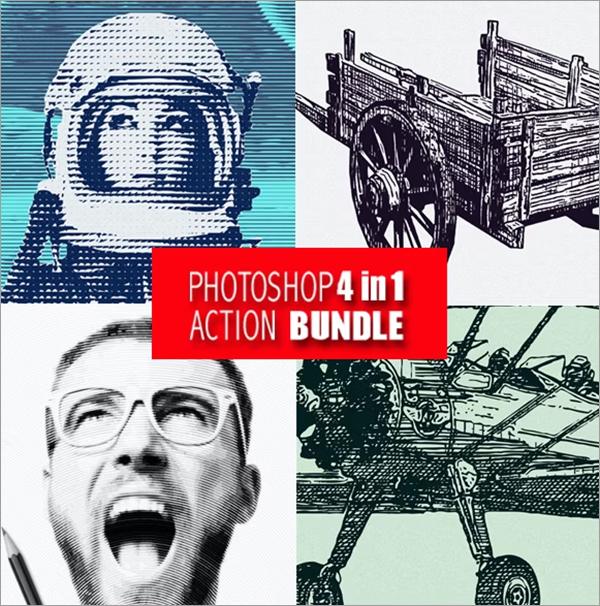
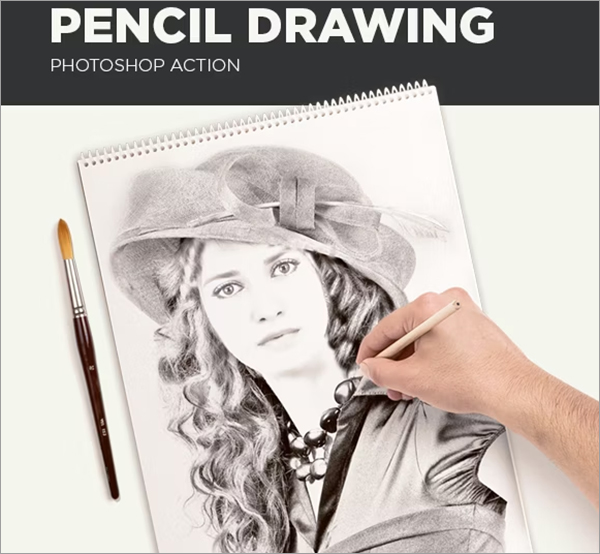
Pencil Drawing Photoshop Actions: Transform Your Photos into Hand-Drawn Masterpieces
The art of pencil drawing has long been admired for its ability to capture detail, emotion, and depth with simplicity. While it takes years to master traditional pencil techniques, Pencil Drawing Photoshop Actions offer a shortcut to achieving similar effects in just a few clicks. These powerful actions allow you to transform your photos into stunning pencil sketches, bringing a touch of artistry and authenticity to your digital work. Whether you are a photographer, designer, or illustrator, using Pencil Drawing Photoshop Actions can give your images a timeless, handcrafted look.
In this guide, we’ll dive deep into the world of Pencil Drawing Actions, explore their benefits, and provide detailed steps on how you can use them to elevate your creative projects. From realistic sketch effects to intricate shading and line work, these actions open up endless possibilities for artistic expression.
What Are Pencil Drawing Photoshop Actions?
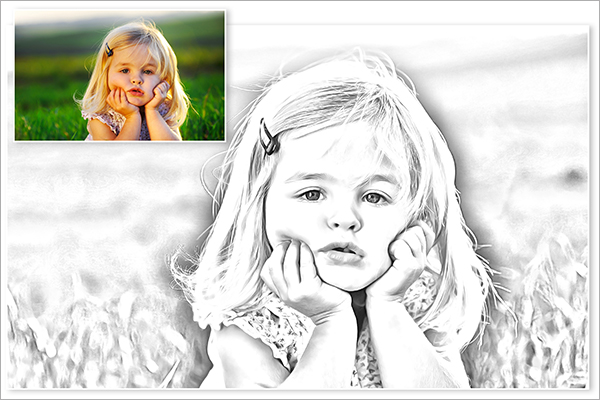
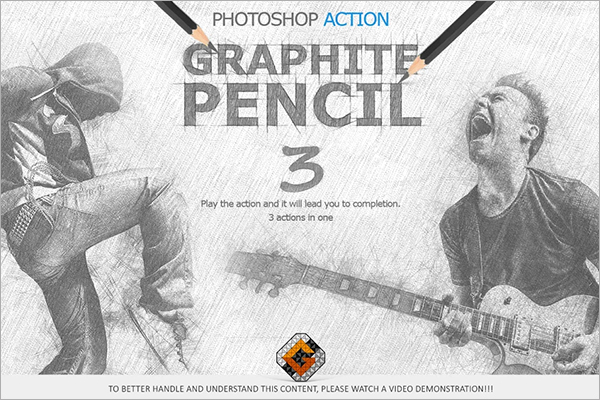
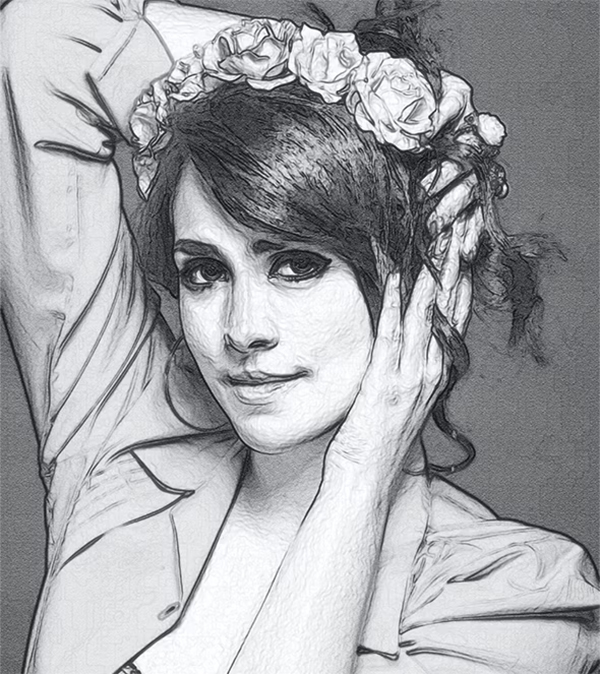
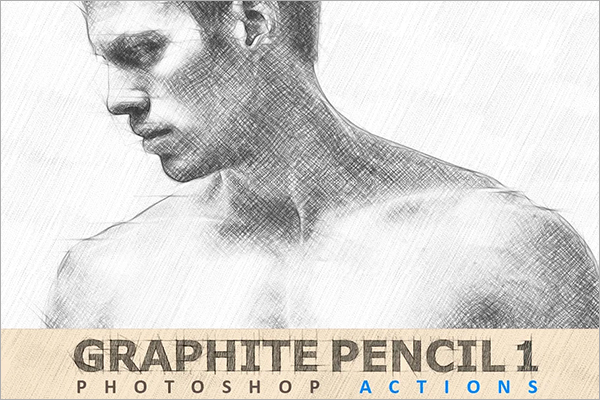
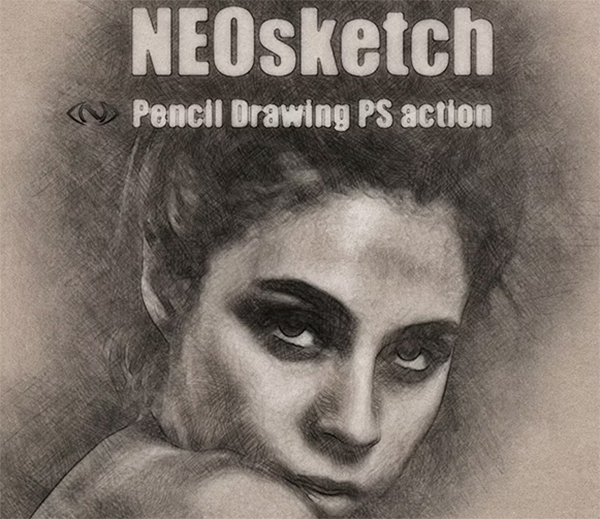
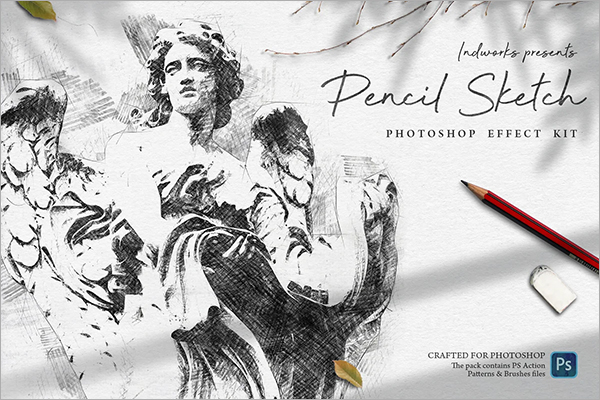
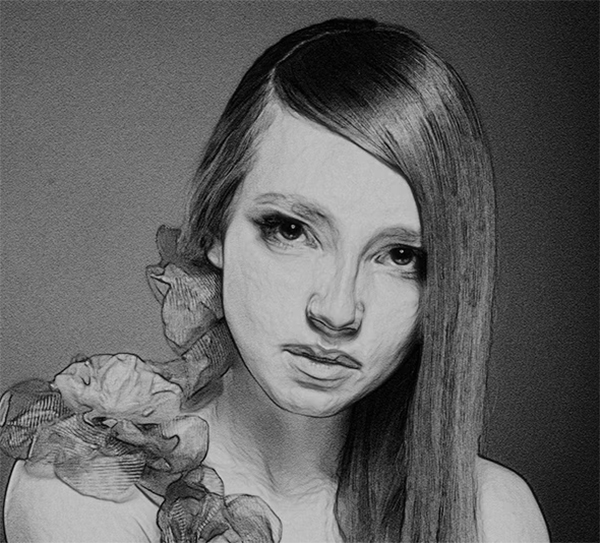
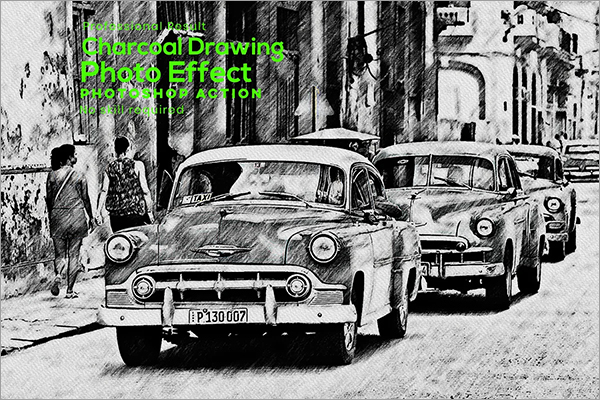
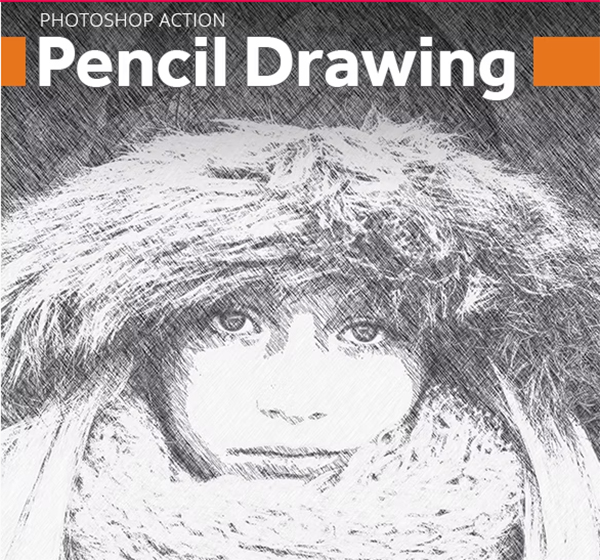
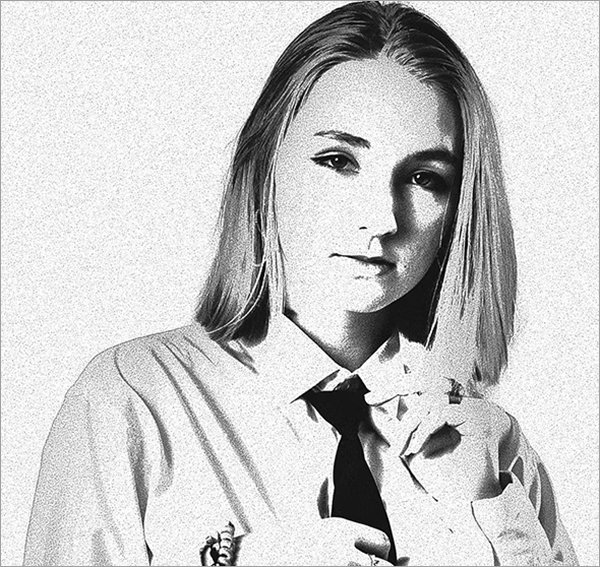
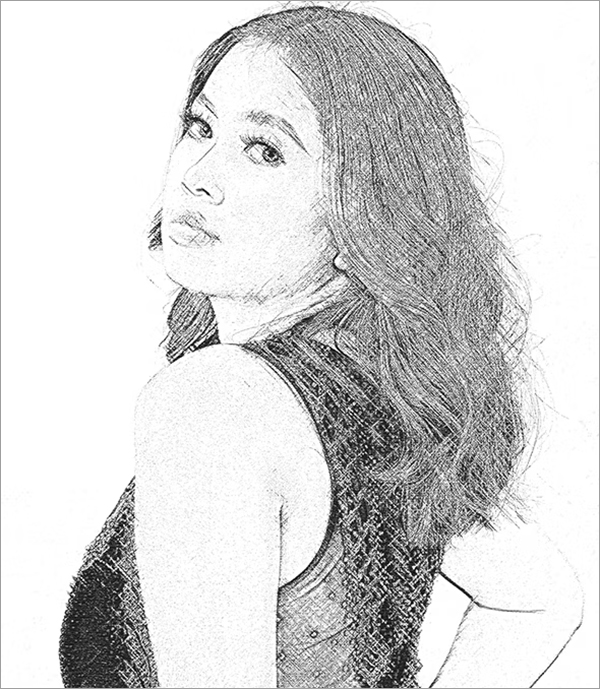
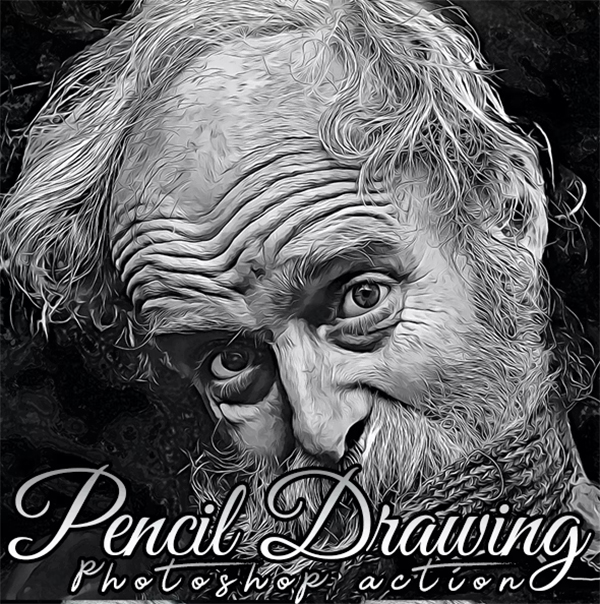
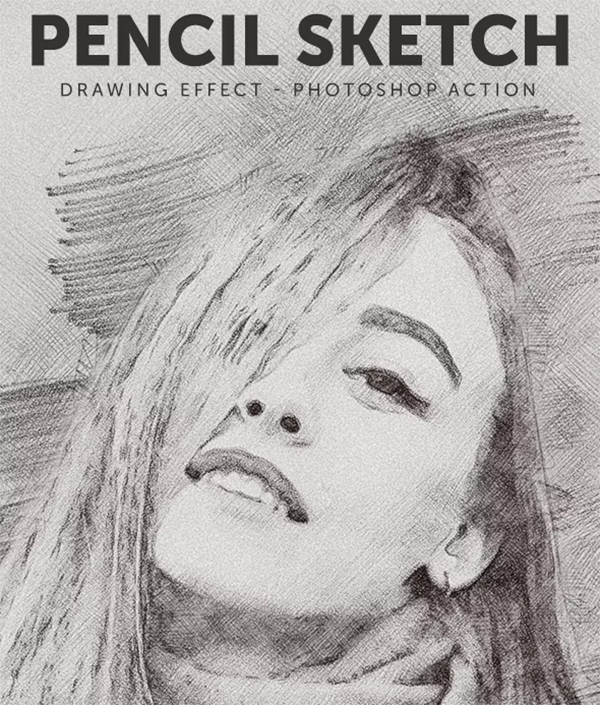
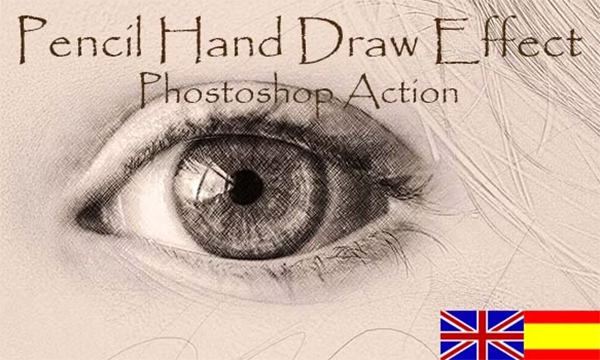
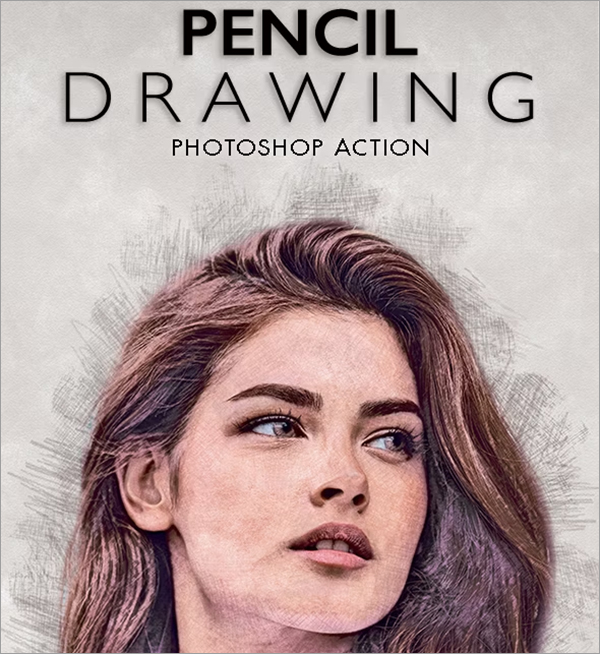
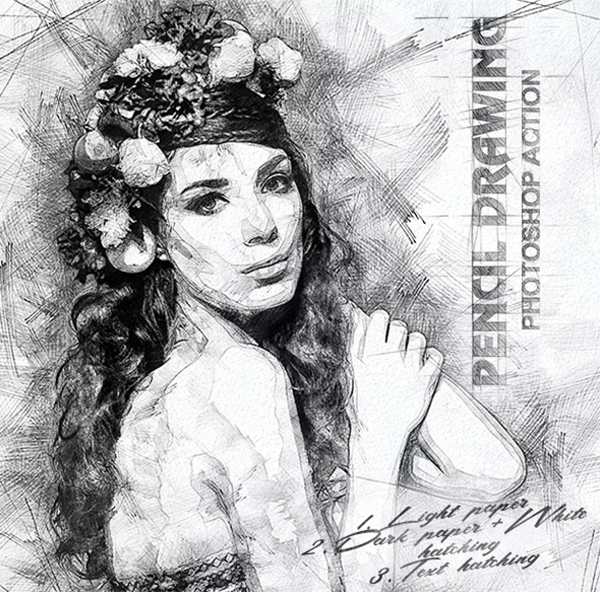
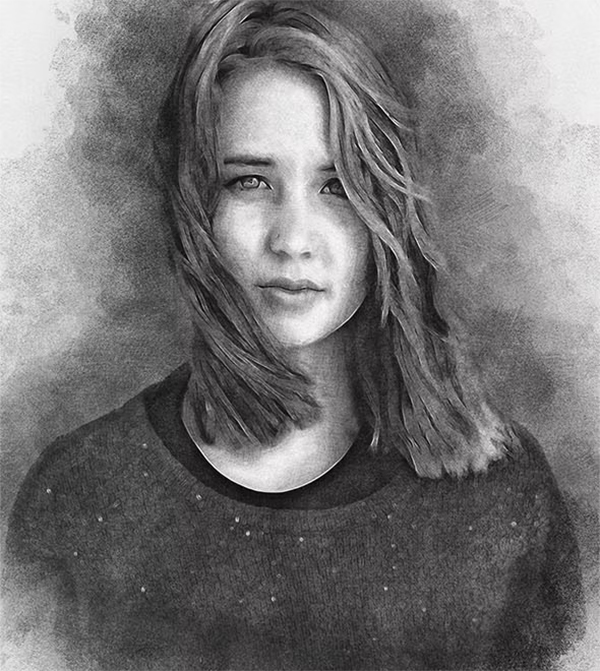
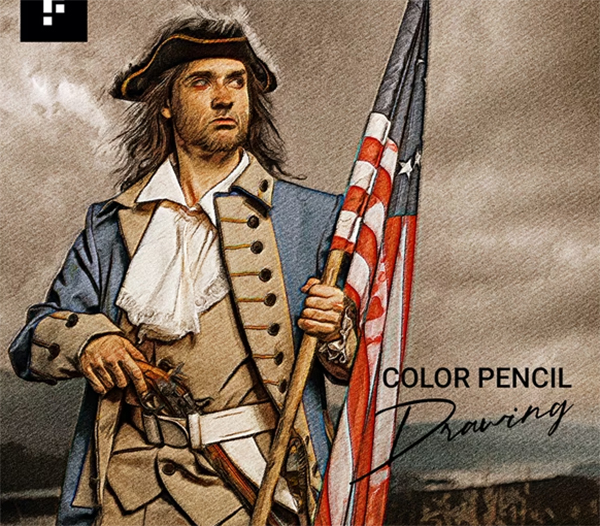
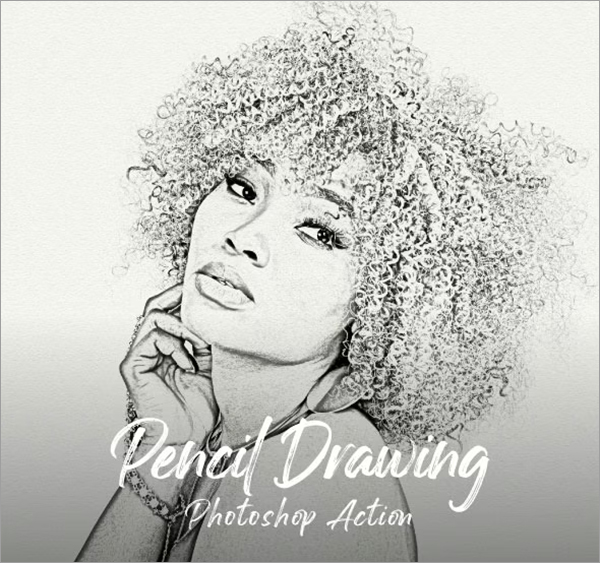
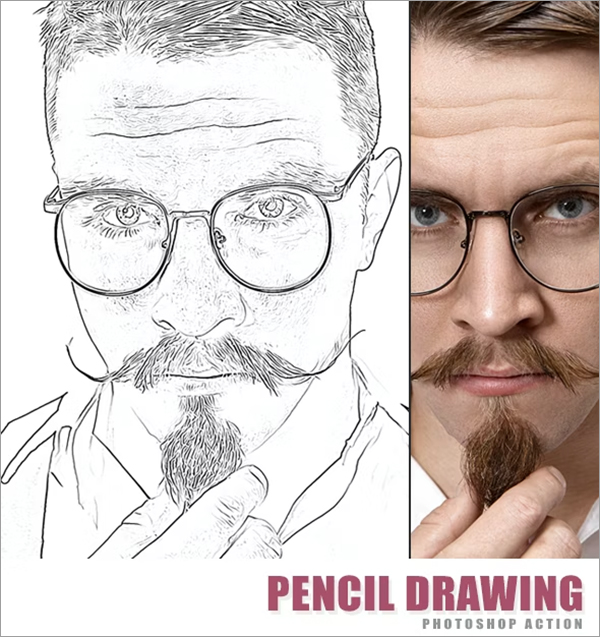
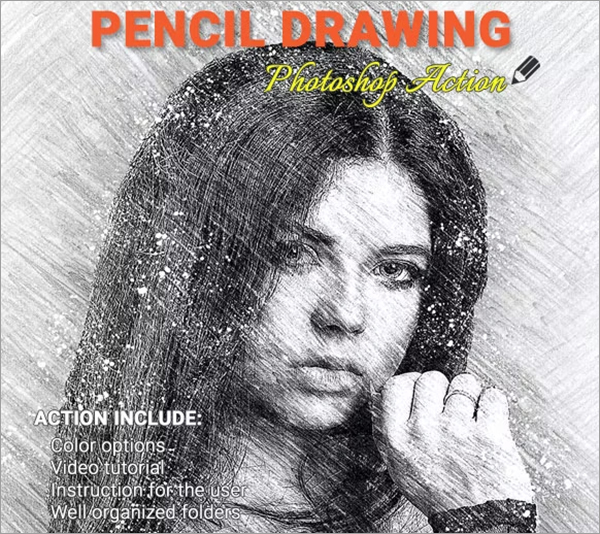
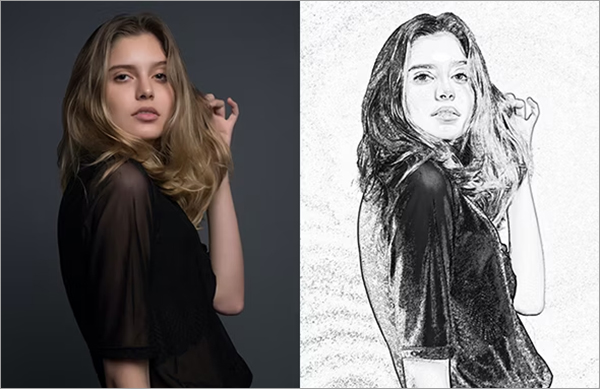
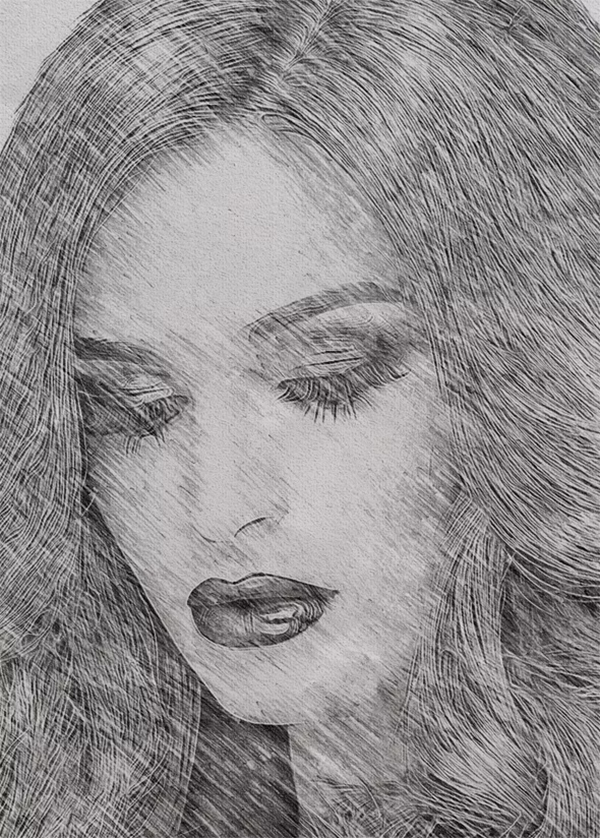
Pencil Drawing Photoshop Actions are pre-recorded steps in Photoshop that mimic the appearance of a hand-drawn pencil sketch. These actions apply a series of filters, adjustments, and blending modes to convert a photo into a pencil-like drawing. They can simulate various pencil techniques, such as cross-hatching, shading, and fine line work, giving your images a textured, sketched appearance.
Using these actions saves time and effort, especially for those who may not have the skills or patience to create hand-drawn sketches from scratch. The results can range from hyper-realistic pencil sketches to more abstract, artistic interpretations, depending on the style and complexity of the action used.
Why Use Pencil Drawing Photoshop Actions?
1. Achieve Artistic Effects with Ease: For designers and photographers, Pencil Drawing Photoshop Actions offer a quick and easy way to add artistic flair to their work. Whether you're looking to create a vintage-inspired portrait, an illustrated product image, or a stylized landscape, these actions allow you to do so with minimal effort. Instead of manually sketching, shading, and adjusting each element, you can apply an action and instantly transform your image into a unique work of art.
2. Add a Handcrafted Touch to Digital Art: In the digital age, where sleek, clean designs dominate, there’s something refreshing about adding a handcrafted feel to your artwork. Pencil drawing effects introduce a level of texture and imperfection that gives your work a more personal, authentic touch. This is especially useful for branding projects, editorial illustrations, or social media content, where you want to evoke a more organic, artisanal vibe.
3. Enhance Branding and Marketing Materials: Incorporating pencil drawing effects into your marketing materials can help your brand stand out. These actions allow you to create custom illustrations, logos, or icons that give your visuals a distinct, hand-drawn look. Whether it’s for affiliate marketing, graphic design templates, or content creation, pencil drawing actions can bring a unique edge to your branding, making your visuals more memorable. Vintage Sketch Photoshop Actions
How to Use Pencil Drawing Photoshop Actions
Using Pencil Drawing Photoshop Actions in your workflow is straightforward, even if you're new to Photoshop. Here’s a step-by-step guide to help you get started:
Step 1: Install Your Action: Before you begin, you’ll need to install the Pencil Drawing action into Photoshop. If you’ve downloaded a ready-made action, open Photoshop and go to the Actions panel. Click the small menu in the top-right corner of the panel, then select Load Actions. Choose the action file from your computer, and it will appear in the list of available actions.
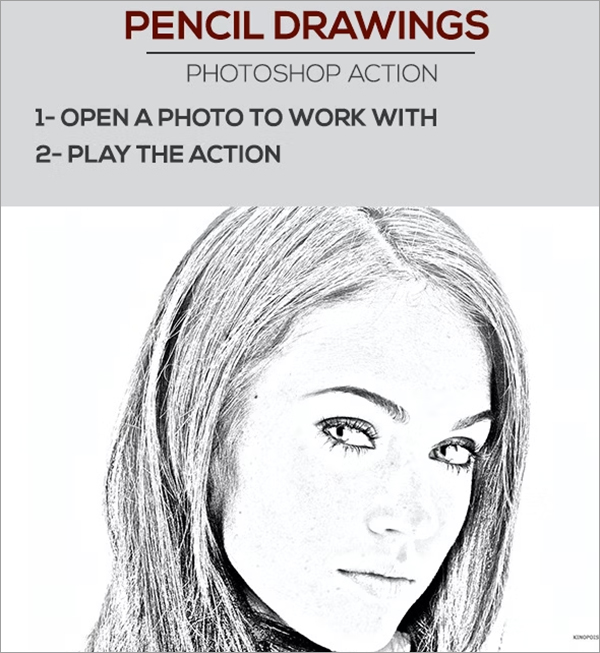
Step 2: Open Your Image: Next, open the image you want to convert into a pencil drawing. This could be anything from a portrait to a landscape or even a product photo. Make sure your image is in high resolution for the best results, as lower-resolution images may lose detail during the transformation.
Step 3: Apply the Pencil Drawing Action: Once your image is open and your action is loaded, select the Pencil Drawing Action from the Actions panel and click the "Play" button. The action will automatically apply a series of adjustments to your image, converting it into a detailed pencil sketch. Depending on the action you’ve chosen, this might include adding shading, outlines, and texturing that resemble hand-drawn lines.
Step 4: Customize the Results: After the action has completed, you can further refine your pencil drawing. Adjust the opacity of the layers, tweak the contrast, or add new adjustment layers to get the exact look you want. Photoshop Actions are non-destructive, meaning you can always go back and modify individual steps without losing the original image.
Step 5: Add Finishing Touches: To give your pencil drawing even more depth and realism, consider adding some finishing touches. You can apply subtle paper textures to mimic the grainy feel of sketching on actual paper, or you can experiment with blending modes to enhance specific areas of the drawing. If your action includes a layer mask, you can use it to selectively apply the pencil effect to certain parts of the image, such as the background or foreground elements.
Types of Pencil Drawing Photoshop Actions
There are various types of Pencil Drawing Photoshop Actions, each designed to produce different sketching effects. Here are some popular types:
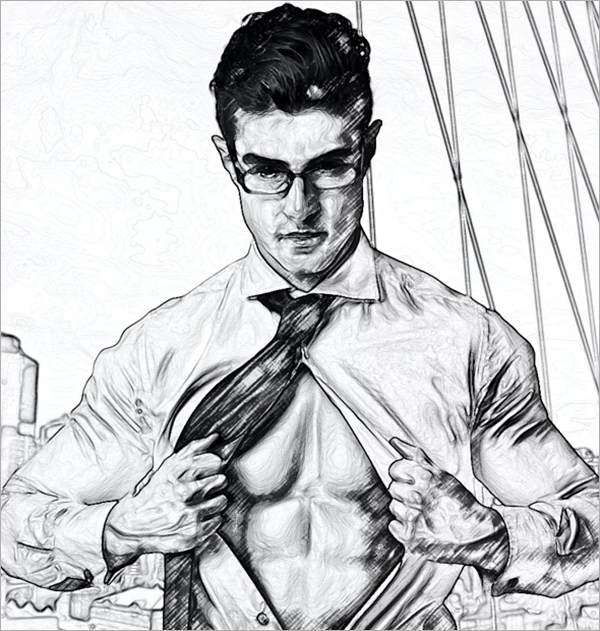
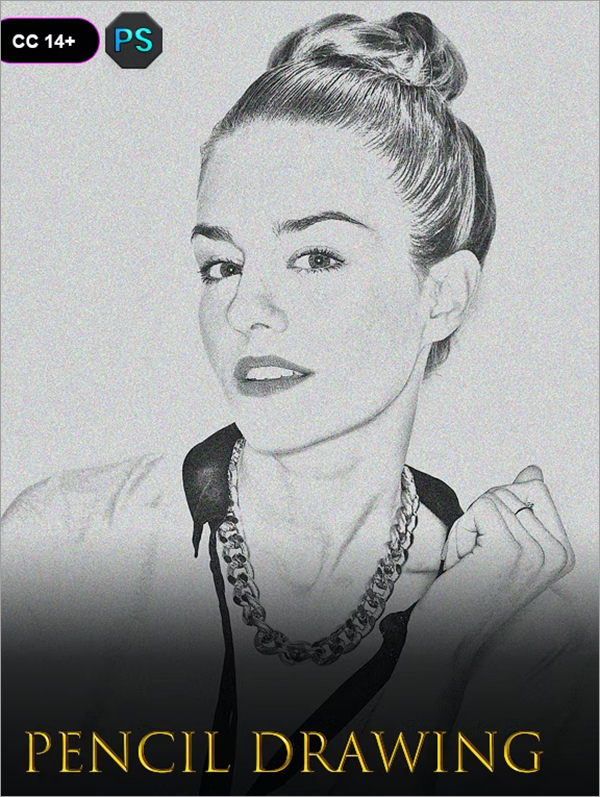
1. Realistic Pencil Sketch Actions: These actions aim to replicate the look of a hand-drawn pencil sketch as closely as possible. They focus on details like shading, hatching, and line quality, producing results that resemble actual pencil drawings. Realistic Pencil Sketch Actions are ideal for portraits, architectural sketches, and detailed illustrations where accuracy and fine detail are key.
2. Cartoon and Comic Style Pencil Actions: For a more stylized approach, some actions turn your images into cartoon-like pencil drawings. These actions use bolder lines, simplified shading, and a more exaggerated style, making them perfect for comic book illustrations or whimsical designs. If you’re creating content for children's books or looking to add a playful touch to your designs, cartoon pencil actions can be a great choice.
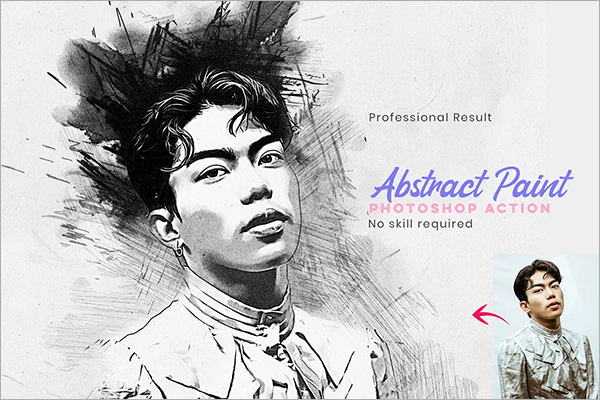
3. Abstract Pencil Drawing Actions: If you want to create a more artistic or experimental look, abstract pencil drawing actions are a great option. These actions often combine elements of pencil drawing with other artistic effects like watercolor, ink splatters, or paint strokes. The result is a unique, textured effect that works well for concept art, album covers, or editorial illustrations. Pen Sketch Photoshop Actions
Top Pencil Drawing Photoshop Actions to Try
If you’re looking to experiment with Pencil Drawing Photoshop Actions, here are some top picks that cater to different styles and needs:
Pencil Sketch Pro: Known for its realistic shading and line work, this action is great for portrait photographers looking to add an artistic touch to their photos.
Sketch Art Photoshop Action: A versatile action that combines pencil drawing with watercolor effects, perfect for abstract and conceptual designs.
Pencil Drawing Effect: Ideal for creating high-contrast, detailed sketches with a sharp, refined look. This action is well-suited for architectural and technical drawings.
Comic Style Pencil Action: For designers looking to create bold, cartoon-like sketches, this action simplifies your photo into comic-style line art.
Conclusion
Pencil Drawing Photoshop Actions open up a world of creativity for designers, photographers, and artists. They provide a quick and easy way to turn photos into pencil sketches, giving your images a handcrafted, artistic feel. Whether you’re creating custom illustrations, enhancing marketing materials, or adding a vintage touch to your digital art, these actions are a powerful tool that can take your work to the next level.
By mastering Pencil Drawing Photoshop Actions, you can transform any image into a timeless piece of art, combining the precision of digital tools with the charm of traditional drawing techniques. Start experimenting with these actions today and see how they can add a new dimension to your creative projects.